RapidCrop
Crop finished photos to a fixed ratio, fast.
When you know where a photo is going, you know its ratio: 16:9 for the site, 1:1 or 3:4 for social. Opening each one in a big editor to cut it takes far too long.
RapidCrop only crops. Pick the ratio once, move the frame, SPACE. It saves and moves to the next photo. If the horizon is off, drag the handle under the frame sideways. That's the whole job.
Originals are never touched. A new file with _16x9 in the name appears next to each one.
¥800 JPY, tax included / one-time purchase / no license key
v2.5 / macOS 13 or later / Apple silicon and Intel
English and Japanese (follows your Mac's language)
You pay on PayPal's page. No PayPal account needed — a card works. All sales are final: no refunds for change of mind (legal notice).
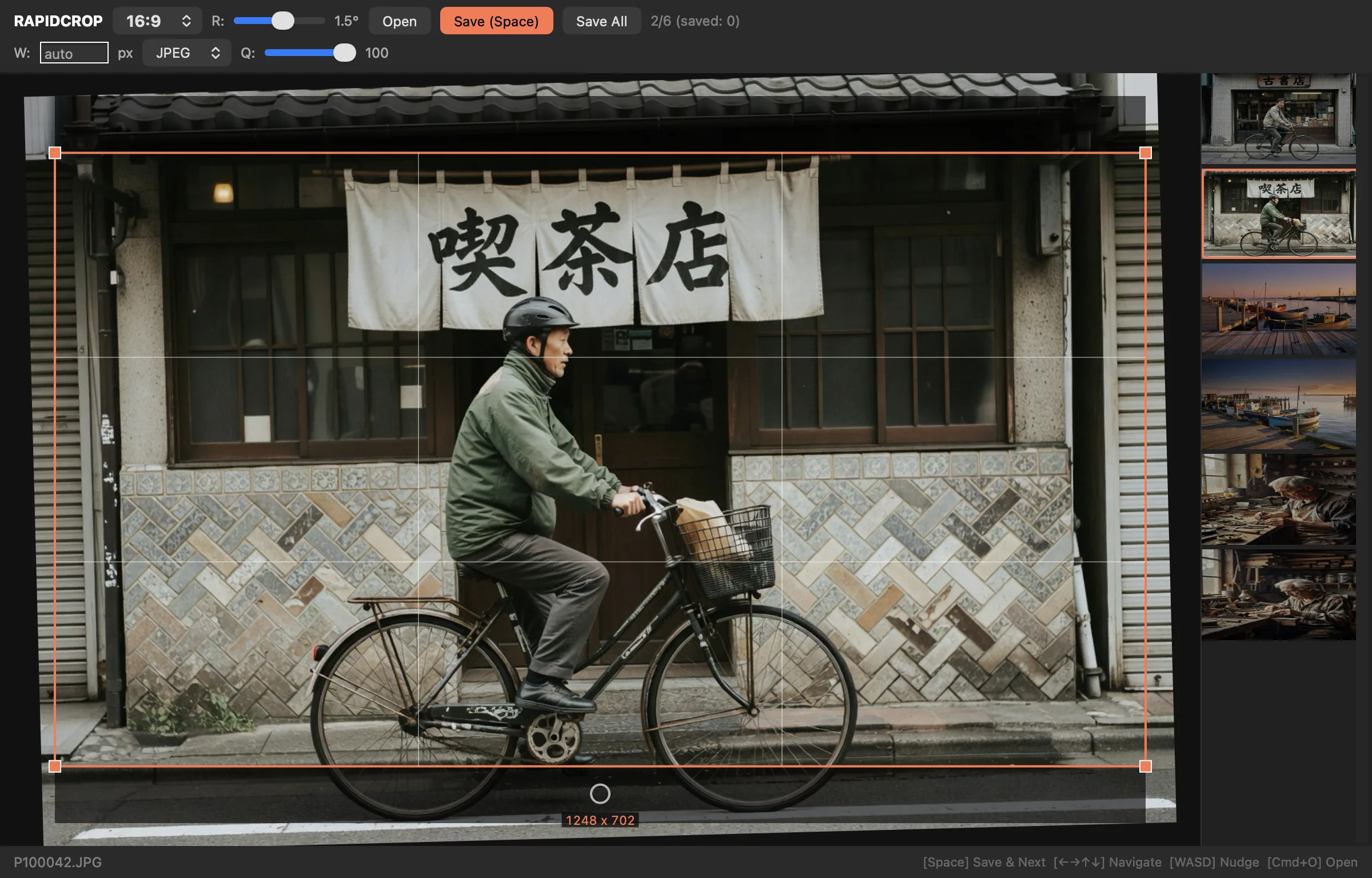
Crop
Place the frame. SPACE. Saved, next.
Seven ratios: 16:9, 4:3, 1:1, 3:2, 2:1, 3:4, 9:16. Pick one and the largest frame of that ratio appears, centered.
Drag inside the frame to move it. Drag a corner to resize (the ratio never breaks). W A S D nudge it 5 px at a time. A rule-of-thirds grid and the output size in px sit inside the frame.
SPACE saves and moves on. In the strip on the right, orange is the current photo, green is saved. Click the strip to go back. Save All does every photo you haven't saved yet.
- 7 ratios
- Corners to resize
- WASD to nudge
- SPACE = save & next
- Save All
Level
Drag the handle under the frame. Watch the grid. ±15°.
For a tilted photo, drag the round handle below the frame left or right. A level grid overlays the photo while you drag, with the angle in 0.1° steps. The slider at the top does the same.
The photo zooms in just enough that no empty corners appear, in the preview and in the saved file.
- ±15°
- Level grid
- No empty corners
Output
Originals stay. A _16x9.jpg appears next to them.
Saved into the same folder as the original name + _16x9 (whichever ratio you chose). JPEG (quality 50–100) or PNG. Width is the crop's own pixel size, or a number you type.
Originals are never rewritten. Files with a ratio suffix are skipped on the next open, so nothing gets cropped twice.
Stop halfway and open the same folder again: it resumes, and remembers what you've saved.
- JPEG / PNG
- Set the width
- Resume later
FACTS
- Price
- ¥800 JPY (tax included). One-time purchase.
- Refunds
- No refunds for change of mind. We refund if a fatal bug can't be fixed, or for duplicate purchases.
- Runs on
- macOS 13 or later. Apple silicon and Intel.
- Reads
- Any image format your Mac can open (JPEG, PNG, HEIC, TIFF and so on).
- Writes
- JPEG (quality 50–100) or PNG, into the same folder, named original + _ratio.
- EXIF
- Not carried over. The cropped file is pixels only, with no shooting data.
- Updates
- No auto-update. When a new version is out, download it again the same way.