RecOn
Screen, voice and system audio, recorded together.
With the things you actually use: picture-in-picture, click effects, gain. Audio-only is one click away. The combination that somehow didn't exist. It lives in the Mac menu bar; press ⏺ and it records.
Of everything I've built, this is the one I use most — mostly for recording audio, then the screen. I looked for something at this level on the App Store, couldn't find it, and built it.
QuickTime gives you no choice of audio source, no gain, and it's slow to start. Bending audio through BlackHole or setting up OBS is overkill for a quick capture. The audio routing is immediate, Mac audio and mic have separate gain, and there's a limiter. That part is built to a professional standard.
FREE — record, set the levels, show
Free on the App Store / no time limit / no ads
macOS 15 or later / Apple silicon and Intel
9 languages: English, Español, Français, Deutsch, Português, 简体中文, 繁體中文, 한국어, 日本語
PRO — plus the after-recording work, inside RecOn
¥4,800 JPY, tax included / one-time purchase / no license key
Recording, audio and the overlays are the same as the free app. Try those there first
You pay on PayPal's page. No PayPal account needed — a card works. All sales are final: no refunds for change of mind (legal notice).
About PRO ↓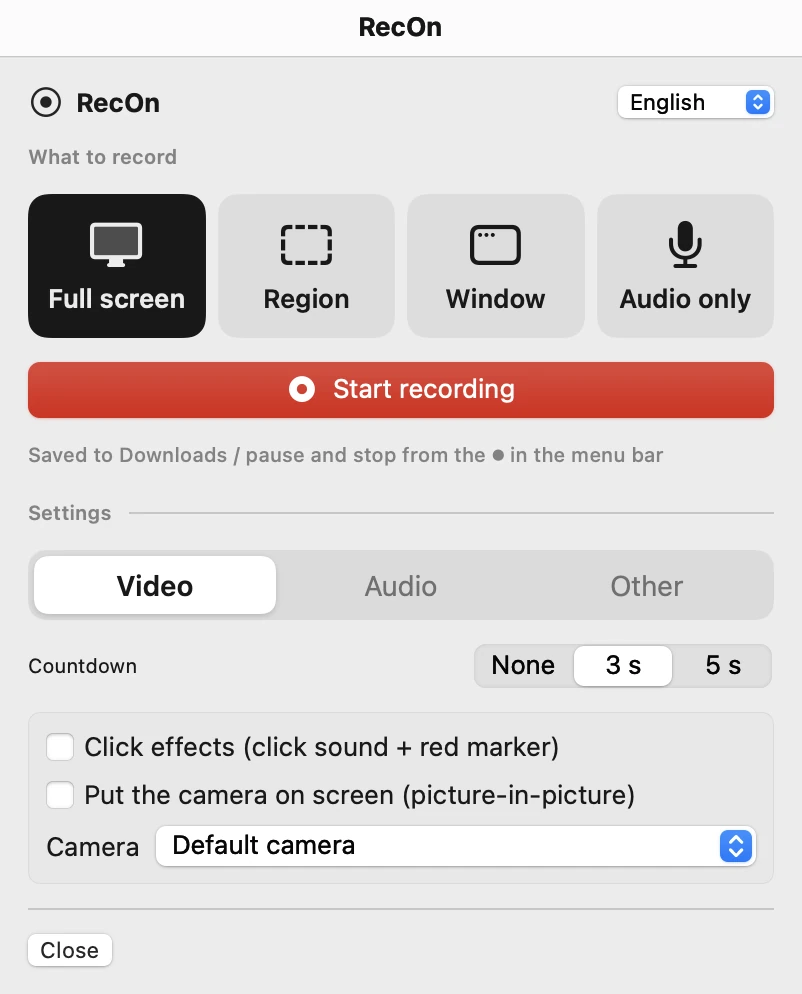
Record
⏺ → Start recording. That's the whole screen.
Four things to record: full screen, region (drag to select, move the frame, resize by the corners, then REC), a single window, audio only (mic → WAV or M4A; PRO adds MP3).
Window records just the window you pick. It follows the window when you move it, and other apps' windows on top of it stay out of the video. The camera overlay and click effects still show.
Countdown: none / 3 s / 5 s. Region capture always counts down, so you never record the moment you click.
Pause and resume. Nothing is written while paused; resume and it continues in the same file (no split files).
HEVC video, AAC 48 kHz audio. The file is written every 5 seconds, so a crash keeps what was recorded.
- Full screen
- Region
- Window
- Audio only (WAV / M4A)
- Pause / resume
- HEVC + AAC
Audio
Mac audio and the mic, with separate gain. Turn it up without clipping.
System audio is captured directly — no BlackHole, no switching the output device.
Pick the mic input and watch the VU meter to see it's live. Gain ×1 to ×16 with a brickwall limiter at -1 dBFS.
While recording, the ⏺ in the menu bar blinks whenever audio is coming in. No more silent recordings.
After you stop, Mac audio and mic are merged into one stereo track, because some video sites only use the first audio track and would drop your voice.
- System audio
- Mic (choose device)
- Gain ×1–×16
- Limiter -1 dBFS
- One-track merge
Show
Show the clicks. Show yourself.
Click effects: a click sound and a red ripple where you click, in both the audio and the picture. Viewers see what you pressed.
Camera overlay: put your camera on screen. Drag to move, drag the edge to resize, the position is remembered. It's recorded as is. When you're not recording, the × at its top right hides it.
Choose the built-in camera, an external one or your iPhone. You can also pick the framing to show just your face, up to 4× digital zoom.
- Click effects
- Camera overlay
- Camera choice
- Overlay zoom
The after-recording work, done inside RecOn.
The free app stops at the recording. PRO does the things you used to open another app for, right inside RecOn: subtitles, zooming in on what you click, showing your shortcuts, shaping your voice, cutting out what you don't need.
When you stop, the subtitles and zoom are finished off for you. The progress shows in the menu bar.
¥4,800 JPY, tax included / one-time purchase / no license key
Recording, audio and the overlays are the same as the free app. Try those there first
PRO · Subtitles
Talk while you record. When you stop, the subtitles are made.
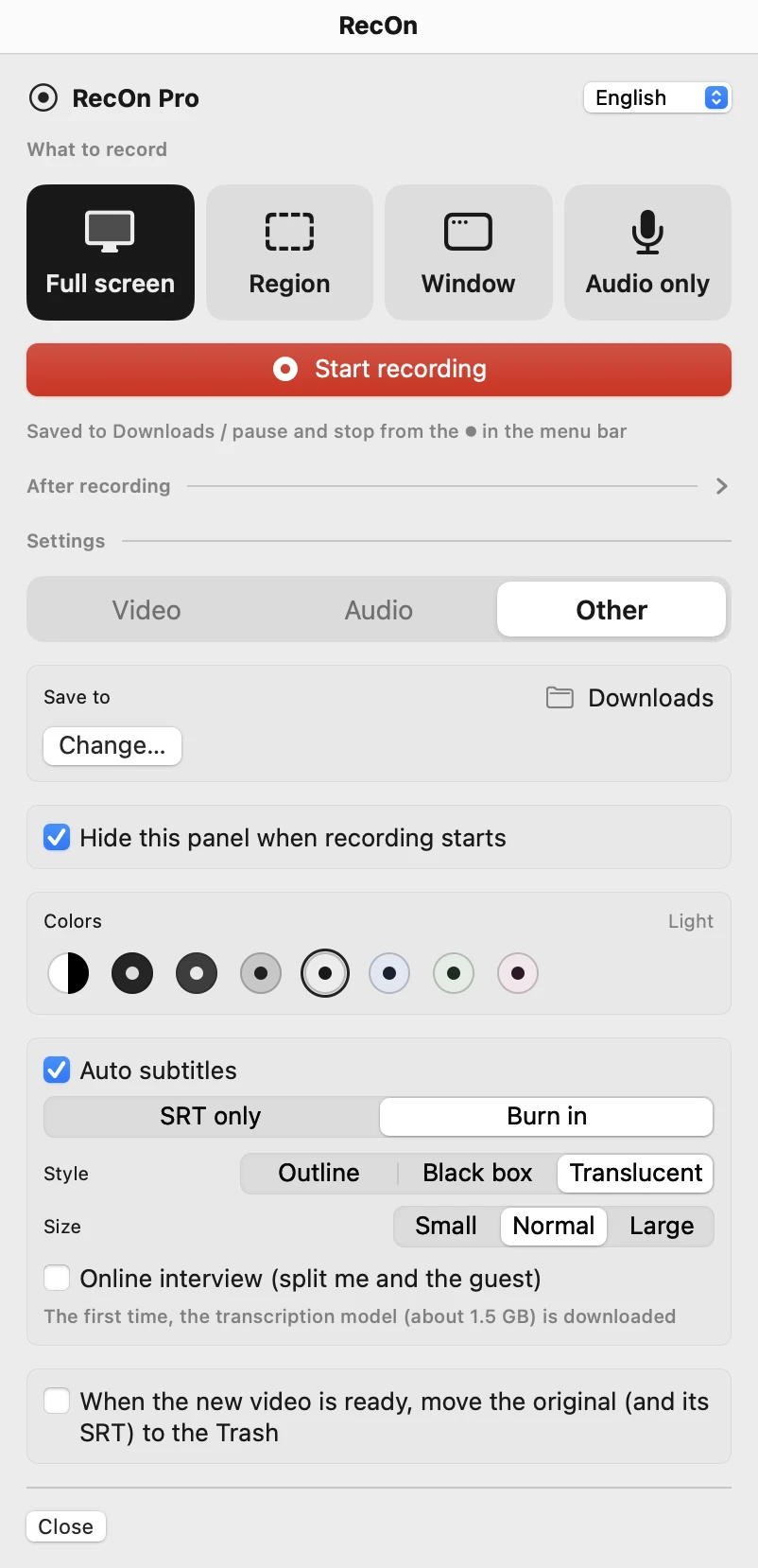
Transcription runs entirely on your Mac. Your voice isn't sent anywhere. The first time, the transcription model (about 1.5 GB) is downloaded.
Write just an SRT, or burn the subtitles into the video. Burned-in subtitles come in three styles (outline, black box, translucent) and three sizes (small, normal, large).
Online interview: the microphone becomes “Me” and the computer audio becomes “Guest”. The guest's voice picked up by your microphone is left out.
Afterwards: remake a recording's subtitles including the computer audio, or burn in an SRT you've corrected yourself.
Subtitles follow the app's language (8 languages; Traditional Chinese isn't supported). They're instant subtitles made as you record, so they won't be perfect. If a line breaks in an odd place, tell me and I'll fix it.
- Auto subtitles
- SRT / burn-in
- Style and size
- Interview (me / guest)
- Remake subtitles
- On-device transcription
PRO · Show
Zoom in where you click. Show the shortcuts you press.
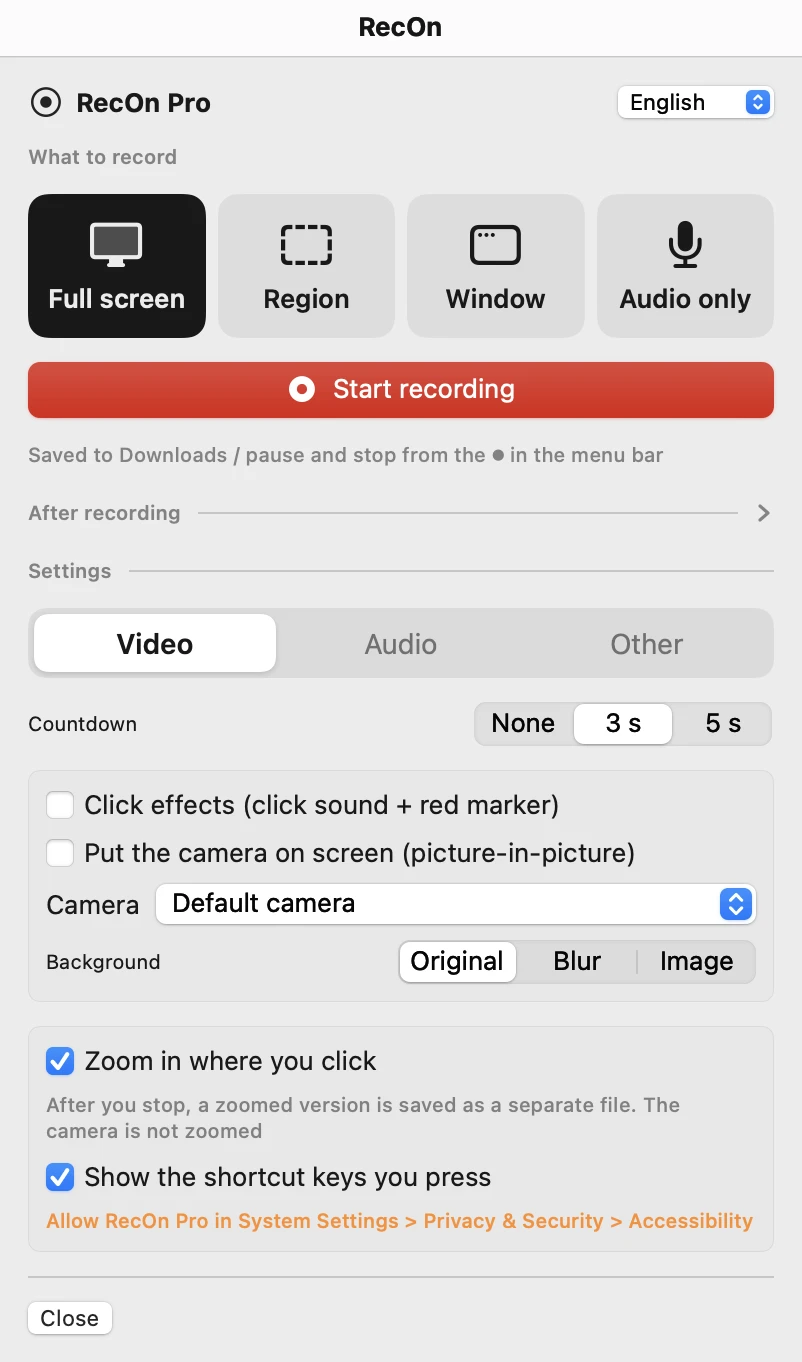
Auto zoom follows your clicks. After you stop, a zoomed version is saved as a separate file. The camera overlay isn't zoomed.
The clicks are saved too, so if the zoomed version wasn't made (say RecOn quit while finishing), you can remake it later.
Shortcut display: only keys pressed with ⌘ or ⌃ appear on screen. Normal typing doesn't. It needs the macOS Accessibility permission.
Camera background: blur what's behind you, or keep just you and put an image of your choice behind.
- Auto zoom
- Remake zoom
- Shortcut display
- Camera background
PRO · Voice
Shape your mic. Noise removed after you stop.
Preamp: five analog console characters plus drive, applied to the mic as you record (a port of Airwindows Channel9).
Remove noise: after you stop, background noise is removed from the mic so only your voice remains. The original is kept as a file marked “original voice”.
- Preamp ×5
- Drive
- Remove noise
PRO · After
Cut what you don't need. Join two takes.
Clip video: pick a time range and an area of the screen, and export it as a new file.
Clip audio: export the sound of part of a video as MP3 or WAV.
Join videos: put two videos end to end in one file. If they're in the same format they're joined as they are, which is fast.
- Clip video
- Clip audio
- Join videos
FREE / PRO
Recording is the same. PRO goes on to the finishing.
| FREE | PRO | |
|---|---|---|
| Full screen, region, window, audio only | ● | ● |
| Mac audio and mic (separate gain, limiter) | ● | ● |
| Click effects, camera overlay | ● | ● |
| Auto subtitles (SRT / burn-in) | — | ● |
| Auto zoom on clicks | — | ● |
| Shortcut display | — | ● |
| Preamp, noise removal | — | ● |
| Camera background | — | ● |
| Clip video and audio, join videos | — | ● |
| Price | Free | ¥4,800 |
FACTS
- Price
- RecOn is free. RecOn Pro is ¥4,800 JPY (tax included), one-time purchase.
- Refunds
- No refunds for change of mind — try recording, audio and the overlays in the free app first. We refund if a fatal bug can't be fixed, or for duplicate purchases.
- Runs on
- macOS 15 or later. Apple silicon and Intel.
- Permissions
- Screen Recording, Microphone, and Camera (only for the overlay). PRO's shortcut display also needs Accessibility. macOS asks the first time.
- Two apps
- RecOn and RecOn Pro are separate apps. You can install both; their settings and permissions are kept apart.
- Subtitle model
- PRO's auto subtitles download a transcription model (about 1.5 GB) the first time. The transcription itself runs on your Mac.
- Files
- RecOn from the App Store asks you to choose a folder the first time you record. RecOn Pro starts with your Downloads folder. Either way you can change it in the Other tab. RecOn Screen Recording / Audio Recording <date>.mov / .wav / .m4a (PRO also .mp3).
- Colors
- Match Mac (the see-through look), or seven color schemes: Dark, Mid Dark, Mid Light, Light, Blue, Green and Pink. Switch them in the Other tab.
- MP3
- RecOn Pro only. Written with the bundled LAME (LGPL). The license text is inside the app.
- Updates
- RecOn updates through the App Store. RecOn Pro has no auto-update; when a new version is out, download it again from your purchase page link.